Yes, you can use Uber and Lyft during the same shift if you are approved to drive on both platforms and meet the requirements for your location and vehicle. A manageable routine is to compare requests while available, accept one suitable ride, go offline on the other app, and finish your commitment before looking for another.
Can you drive for Uber and Lyft at the same time?
This is rideshare multi-apping: using more than one platform to find your next trip. The aim is to give yourself more options between rides while keeping each passenger’s trip straightforward.
Uber’s U.S. driver FAQ says drivers can use Uber and other rideshare apps at the same time. Lyft’s U.S. terms also allow drivers to provide similar services for other companies. Your account approval, vehicle eligibility, and local requirements still apply.
Our recommended starting point is one accepted ride at a time. Keeping two apps available between trips is different from promising two separate passengers a pickup you cannot reliably complete. Do not combine independent Uber and Lyft bookings into your own shared ride; Uber’s guidelines restrict extra riders to the requesting rider and their guests, subject to local policies.
Set up both apps before your shift
While safely parked, check that you can go online in both Uber Driver and Lyft Driver. Learn each app’s offline control and review whether it can add another ride to your queue. Keep your phone charged and navigation easy to see.
If you rent your vehicle, check your specific rental agreement for permission to work on both platforms. Plans differ; some current Lyft Flexdrive plans explicitly allow other rideshare services. Confirm insurance coverage for your actual vehicle and work arrangement as well. Coverage depends on factors such as location and app status.
Handle app setup and switching while safely parked. A phone mount helps position the screen, but it does not remove the distraction of changing settings or comparing requests while driving.
A five-step Uber and Lyft routine
Start while safely parked and free to take a ride. The routine is simple: available → choose a ride → other app offline → finish commitments → available again.
Go online when you are free to take a ride
Start with both apps online while parked and available. Check their actual status indicators. Opening an app does not necessarily mean you are online, and sending it to the background does not necessarily take you offline.
Review the whole request
Use the information shown in your market to consider pickup distance, pickup time, estimated trip time, payout, and destination. A larger fare can involve a long unpaid pickup or leave you far from your next likely request. Set your own limits before the shift so every offer does not become a new calculation. Avoid relying on tips, future bonuses, or a next ride that has not appeared.
Accept one ride and take the other app offline
After accepting an Uber request, go offline in Lyft before heading to pickup. After accepting a Lyft request, go offline in Uber. Verify the other app’s status before moving. Simply switching screens is not enough: Uber says its app can continue running in the background and receiving requests. Use the offline control when you are unavailable.
Complete your ride and check the queue
Keep your attention on the accepted trip. Before switching platforms, check whether the current app has already assigned or accepted your next ride. That queued commitment matters even if the passenger in your car has just left. For Lyft, review Driving Options → Driving Preferences → Queued rides → Manual accept before the shift. Lyft’s help page says queued rides use automatic acceptance by default. When ending a run of Lyft rides, its current instructions say to swipe up the bottom panel and tap Ride requests on to stop additional requests; Lyft takes you offline after the final passenger. Controls can vary, so confirm what your app shows.
Become available again when you are ready
Once your accepted work is finished, stop somewhere safe and decide whether to reopen both apps, stay with one, reposition, or take a break. Do not accept an overlapping ride just to keep options open and cancel whichever one becomes inconvenient.
Compare pickup miles and total time, not just the fare
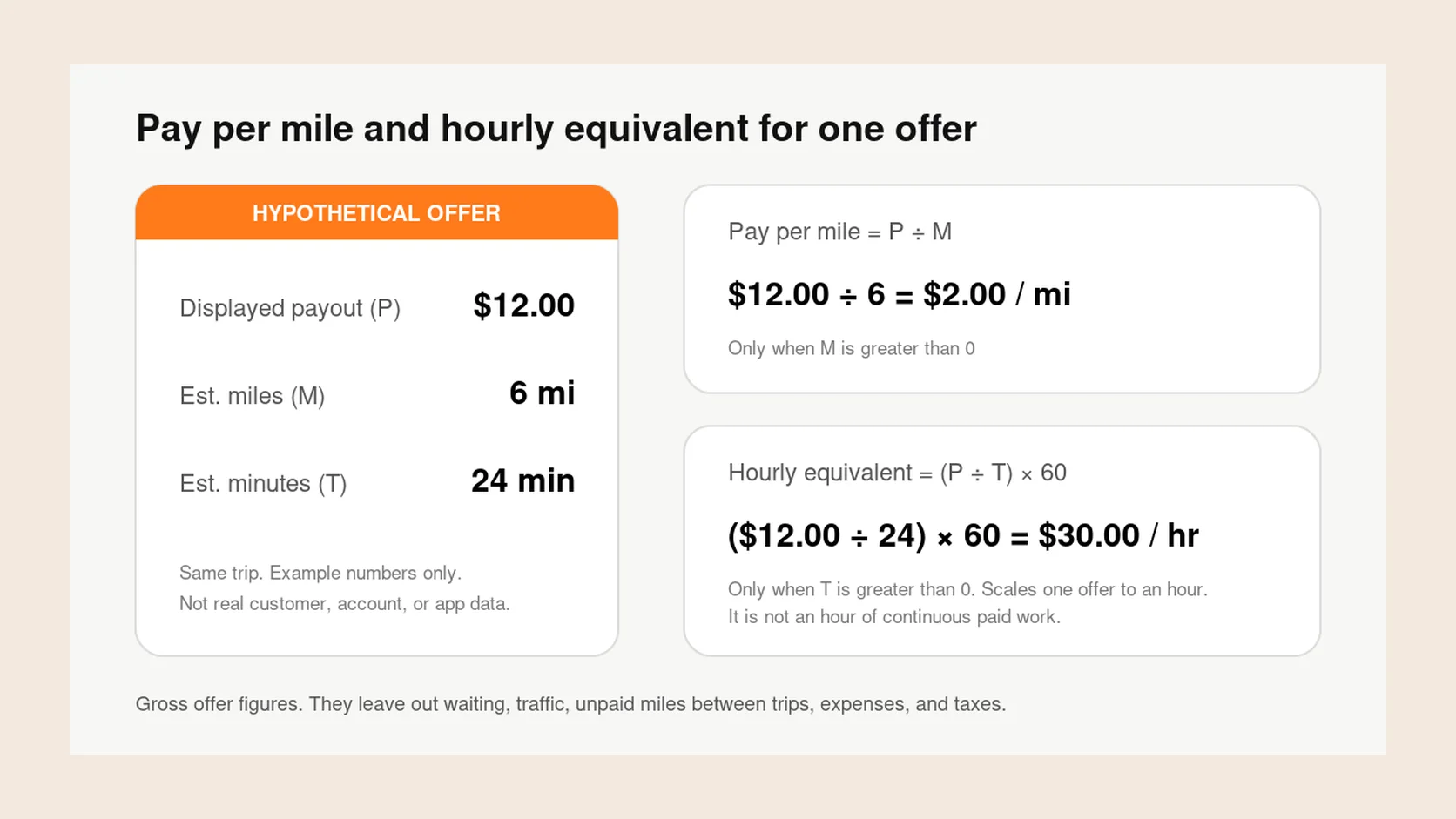
Consider these hypothetical offers. The miles and minutes include pickup plus the passenger trip, but exclude any later waiting or repositioning. These numbers illustrate the math; they are not typical earnings or actual offers.
| Estimate | Offer A | Offer B |
|---|---|---|
| Offered payout | $18 | $14 |
| Pickup plus trip distance | 12 miles | 7 miles |
| Pickup plus trip time | 30 minutes | 24 minutes |
| Gross pay per mile | $1.50 | $2.00 |
| Gross hourly pace for this trip | $36 | $35 |
Compare distance alongside time
Offer A pays more in total. Offer B has a similar hourly pace with fewer miles. Which is more useful depends on pickup conditions, where it ends, and your own goals.
Calculate on the same basis
Calculate gross pay per mile as payout ÷ total estimated miles. Calculate the trip’s gross hourly pace as payout ÷ total estimated minutes × 60. Include pickup only once: check what the app’s displayed totals already contain.
Allow for costs and unpaid time
Neither figure is take-home profit or a prediction for your full shift. Fuel, maintenance, tolls, unpaid waiting, and return travel affect the result.
Find out whether using both apps helps you
Compare similar shifts: the same market, days, and approximate hours. Record the final earnings from both platforms, your actual shift duration, and total work miles.
If both apps were online during the same 30-minute period, you worked 30 minutes, not an hour. Use one actual shift clock so overlapping app timers do not distort the comparison. Review empty miles and waiting time alongside total payout. More requests only help if they lead to work that fits your goals.
For more examples of comparing offer estimates, read how to compare pay per mile and pay per hour. These offer rates do not replace your complete shift records.
Track fatigue across the whole shift, too. Switching from Uber to Lyft does not give you a break. Each platform has driving-time rules, and local requirements can differ. Plan rest around your total work rather than waiting for one app to force you offline.
Where Giga Driver fits
Giga Driver provides offer grades, pay-per-mile and pay-per-hour information, and offer history for supported offers. Check current support for your phone and the apps you use before relying on it during a shift.
You remain responsible for your availability and trip decisions. Giga Driver does not accept or decline rides for you or automatically manage this Uber/Lyft switching routine. It is an independent tool, unaffiliated with Uber or Lyft.
For provider-specific setup, ask support to confirm your provider, phone, and installed app version, and read how offer grades work.
Can I run Uber and Lyft on one phone?
You can use one compatible phone with both driver apps installed and approved accounts. Check background notifications, battery settings, and each app’s status before the shift. Switching to the other app does not automatically make the first one unavailable.
Should I leave both apps online after accepting a ride?
Our recommended routine is to take the other platform offline. This reduces conflicting requests and lets you focus on the passenger you have agreed to pick up. Check for an existing queued ride before reopening the other platform.
Will driving for Uber and Lyft make me more money?
It may give you more options between rides, but higher earnings are not guaranteed. Demand, pickup distance, waiting, vehicle costs, and your choices all matter. Compare your own complete shifts before deciding whether the extra app helps.
Is this the same as using DoorDash and Uber Eats?
The availability habit is similar, but passenger trips and food delivery have different workflows. For deliveries, use our separate DoorDash and Uber Eats guide.