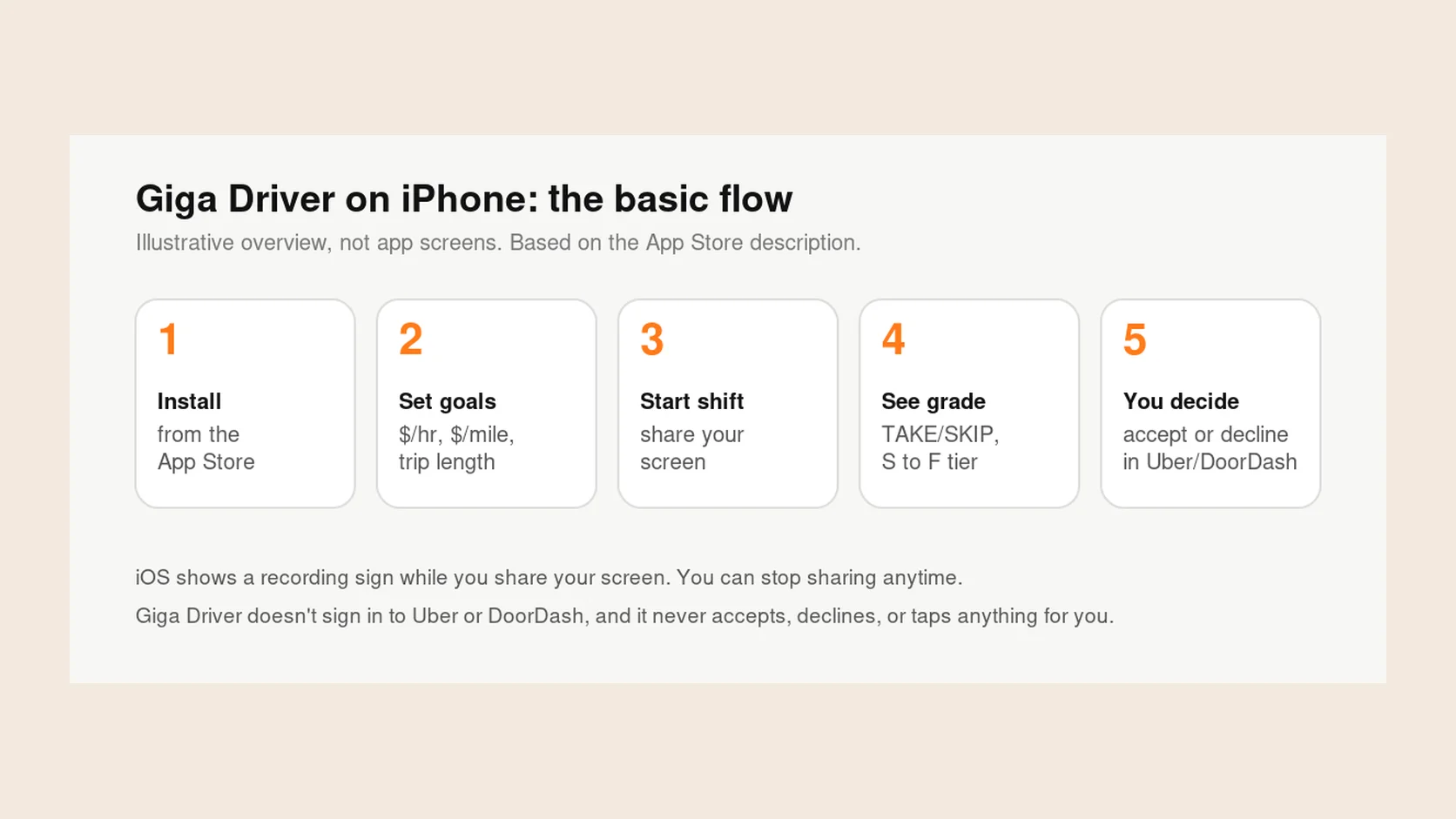
To set up Giga Driver on iPhone, install it from the App Store, set your goals, start a shift and share your screen, then go online in Uber Driver, Lyft Driver, or Dasher. When an offer appears, Giga Driver shows TAKE, MAYBE, or SKIP with a letter tier, and you still accept or decline yourself.
Install from the App Store
Get Giga Driver from the App Store. Before you install, check the listing’s compatibility section. At the time of writing, it says the app requires iOS 27.0 or later. Check the listing for the current requirement and supported devices.
When you first open the app, Welcome to Giga Driver offers Get Started and Have an account? Sign in. Sign In says Sign in or create your account. The buttons are Continue with Google and, when the app offers them, Continue with phone number and Sign in with Apple. After you sign in, Ready to set up Giga Driver? is next. Tap Start. The following screens ask you to Enable location and Allow notifications. When those are done, Congrats! All set tells you to tap GO on the home screen. Tap Finish to get there.
Set your goals and filters
Giga Driver grades offers against goals you set. On the home screen, tap Settings. Under Trip goals and filters, the cards appear in this order: Earnings per mile (Minimum, then Good target), Earnings per hour (Minimum, then Good target), Minimum payout (Minimum), Trip distance, and Pickup distance (Maximum pickup). Time estimates sits collapsed under that heading; open it for Driving, Each stop, and Each shopping item. Reset puts the goals back to a $1.50 per mile good target, a $22 per hour good target, and a $6 minimum payout. An offer below a minimum gets a lower grade, and the further below it is, the lower the grade. The per-mile and per-hour minimums go back to $0, so after a reset the minimum payout is the only minimum that can lower a grade. After a reset, the pickup distance filter is off. To skip pickups longer than 3 miles, tap Enable on the Pickup distance card.
There’s no universal right number. Pick goals that fit your car, your costs, and your market. If you’re not sure how the rates are worked out, read How to calculate pay per mile and hour for a delivery offer.
Start a shift and share your screen
To read offers, Giga Driver needs to see your screen. You start a shift in Giga Driver and share your screen with it using iOS screen sharing.
On the home screen, while the caption says You're offline, tap GO. Follow the iOS prompt to start screen sharing. After you start sharing, the caption changes to Detecting offers and GO becomes Stop.
While you share, iOS shows a recording indicator the whole time. That’s how iOS tells you an app can see your screen. Set this up while parked, before you start driving.
Get an offer in Uber Driver, Lyft Driver, or Dasher
Go online in Uber Driver, Lyft Driver, or DoorDash Dasher as usual. When an offer appears, Giga Driver reads it on your phone and shows TAKE, MAYBE, or SKIP with a letter tier at the top of your screen.
The grade reads TAKE, MAYBE, or SKIP with a letter tier, for example TAKE · A tier, in a Live Activity at the top of the screen. If the Live Activity cannot show that grade, a banner uses the same TAKE, MAYBE, or SKIP and tier. Uber Driver, Lyft Driver, and Dasher use the same wording. The grade stays up while the offer is on screen, and about 20 seconds after the last read if the card has gone.
If you run both apps in one shift, How to DoorDash and Uber Eats at the same time covers going online and pausing requests in each.
Read the grade and make your own decision
The grade is based on the offer’s pay, time, and distance, which are estimates, compared with your goals. It’s a quick read, not a promise. Real trips can involve restaurant waits, parking, and unpaid miles back to your zone.
You accept or decline in Uber Driver, Lyft Driver, or Dasher yourself. Giga Driver never accepts, declines, or taps anything for you. For a closer look at weighing two offers, see How to compare two DoorDash offers beyond the payout.
Stop sharing when you’re done
The App Store listing says you can stop screen sharing at any time. In Giga Driver, tap Stop on the home screen. That ends the shift and stops sharing. The button returns to GO and the caption returns to You're offline.
Once sharing stops, iOS takes the recording indicator away. If it is still there, use the iOS recording control to stop sharing from the system side.
Look back at your offers and trips
Giga Driver lets you look back at the offers you saw and the trips you took. From Settings, tap Trip Offers History to open a shift and see each offer’s time, app, payout, minutes, miles, TAKE, MAYBE, or SKIP with its tier, and whether you accepted or declined. The Earnings tab on the home bar also lists offers under Accepted and Declined; each row shows the app, payout, TAKE, MAYBE, or SKIP with its tier, distance, minutes, and time. Amounts shown for offers are what was offered, not necessarily what you were paid.
Common setup questions
Does Giga Driver sign in to your Uber or DoorDash account? No. Per the App Store listing, it never signs in to Uber or DoorDash. It only reads what’s on your own screen, and it never accepts or declines offers for you.
Why is there a recording indicator? Because you’re sharing your screen with Giga Driver so it can read offers, and iOS shows the indicator whenever an app can see your screen. For details on what the app keeps and sends, read the privacy policy.
How do you stop sharing? Tap Stop on the Giga Driver home screen. That ends the shift and stops screen sharing. Questions about data handling are covered in the Giga Driver privacy policy.